
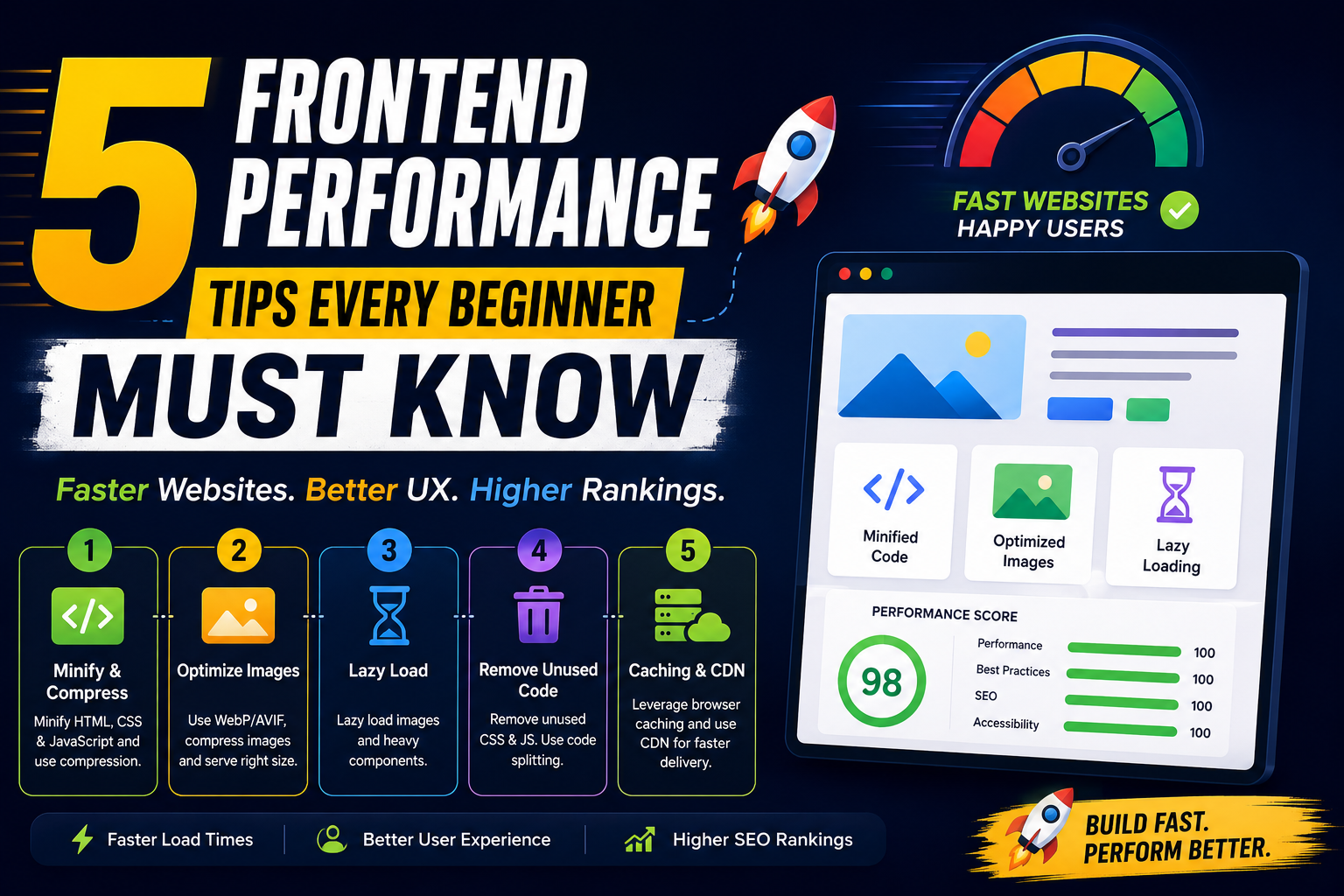
5 Frontend Performance Tips Every Beginner Must Know
Imagine visiting a website that takes 8–10 seconds to load.
Would you wait?
Probably not.
Studies consistently show that users expect websites to load quickly, and even small delays can increase bounce rates and reduce conversions. Search engines also consider page performance when evaluating user experience.
The good news?
You don't need years of experience to build a fast website.
In fact, a handful of simple optimization techniques can dramatically improve loading speed and make your projects feel much more professional.
In this guide, you'll learn five frontend performance tips every beginner should start using today.
Why Frontend Performance Matters
A fast website isn't just about speed—it's about creating a better experience.
Optimizing performance can help you:
🚀 Improve page load times
📈 Enhance SEO and Core Web Vitals
😊 Deliver a smoother user experience
📱 Perform better on mobile devices
💰 Increase engagement and conversions
⚡ Reduce bandwidth usage
Performance should be considered from the beginning of every project, not as an afterthought.
1. Minify & Compress HTML, CSS, and JavaScript
One of the easiest ways to speed up your website is by reducing the size of the files sent to the browser.
What is Minification?
Minification removes unnecessary characters such as:
Spaces
Line breaks
Comments
Extra formatting
For example:
Before
<div class="container">
    <h1>Hello World</h1>
</div>
After
<div class="container"><h1>Hello World</h1></div>The browser reads both versions exactly the same, but the second file is smaller.
Compress Your Assets
In production, enable compression such as:
Gzip
Brotli
Most modern hosting providers and CDNs support these automatically.
Build Tools That Help
Popular tools include:
Vite
Webpack
Parcel
esbuild
These tools automatically minify your assets during production builds.
Pro Tip: Always deploy the production build instead of the development version.
2. Optimize Images Before Uploading
Images are often the largest files on a webpage.
Uploading a 5 MB image only to display it at 400 × 300 pixels wastes bandwidth and slows down your website.
Use Modern Image Formats
Instead of:
PNG
Large JPEGs
Prefer:
WebP
AVIF
These formats provide excellent quality with much smaller file sizes.
Resize Images
Never upload images larger than necessary.
Example:
Instead of uploading:
4000 × 3000 pxResize to:
1200 × 800 pxif that's all your design requires.
Responsive Images
Serve different image sizes based on screen size.
<img
    src="image-800.webp"
    srcset="
        image-400.webp 400w,
        image-800.webp 800w,
        image-1200.webp 1200w
    "
    sizes="(max-width:768px) 100vw, 800px"
    alt="Product"
/>
This ensures users only download the image size they actually need.
3. Lazy Load Images & Heavy Components
Not everything on a page needs to load immediately.
If a user hasn't scrolled to your testimonials, gallery, or embedded map yet, there's no need to download those resources upfront.
Lazy Load Images
Modern browsers support lazy loading natively.
<img
    src="product.webp"
    loading="lazy"
    alt="Product"
/>
The image is downloaded only when it's about to appear in the viewport.
Lazy Load JavaScript
Large JavaScript bundles can also be loaded on demand.
const ProductPage = React.lazy(() => import("./ProductPage"));This keeps your initial bundle smaller and speeds up the first page load.
Great Candidates for Lazy Loading
Image galleries
Maps
Videos
Charts
Comments section
Large React components
Analytics dashboards
The result is a faster, more responsive experience.
4. Remove Unused JavaScript & CSS
Many beginners unknowingly include code that never gets used.
Common examples include:
Entire UI libraries for one component
Unused CSS frameworks
Large icon packs
Old plugins left in the project
Unnecessary npm packages
Every extra kilobyte increases download time.
Avoid This
import _ from "lodash";when you're only using one function.
Instead:
import debounce from "lodash/debounce";Only import what you actually need.
Use Code Splitting
Instead of loading your entire application on the first request:
import("./Dashboard");JavaScript loads the code only when it's needed.
Modern bundlers like Vite automatically optimize production builds through tree shaking and code splitting.
5. Use Browser Caching & a CDN
Not every file needs to be downloaded every time a visitor opens your website.
Browser Caching
Browsers can store static assets locally.
Examples include:
CSS
JavaScript
Images
Fonts
When users revisit your website, these files can be loaded directly from their browser cache instead of being downloaded again.
This significantly improves repeat visit performance.
Content Delivery Networks (CDNs)
A CDN stores copies of your assets on servers around the world.
Instead of downloading a file from one central server, users receive it from the nearest location.
Popular CDNs include:
Cloudflare
Bunny CDN
Amazon CloudFront
Fastly
Benefits include:
Faster loading times
Reduced server load
Better global performance
Improved reliability
Even small websites can benefit from using a CDN.
Common Beginner Mistakes
Avoid these common performance issues:
❌ Uploading uncompressed images
❌ Loading every JavaScript file on every page
❌ Using massive libraries for simple tasks
❌ Forgetting to enable production builds
❌ Ignoring browser caching
❌ Embedding multiple third-party scripts unnecessarily
Performance is often lost through small decisions that add up over time.
Tools to Measure Performance
You can't improve what you don't measure.
Here are some excellent free tools:
Google Lighthouse
Built directly into Chrome DevTools.
It analyzes:
Performance
Accessibility
SEO
Best Practices
Google PageSpeed Insights
Provides real-world performance data and suggestions for improvement.
GTmetrix
Offers waterfall charts, load times, and optimization recommendations.
WebPageTest
Allows testing from different devices, browsers, and geographic locations.
Make performance testing part of your development workflow.
Quick Performance Checklist
Before launching your website, ask yourself:
✅ Are HTML, CSS, and JavaScript minified?
✅ Are images compressed and using WebP or AVIF?
✅ Are below-the-fold images lazy loaded?
✅ Have I removed unused CSS and JavaScript?
✅ Is browser caching configured?
✅ Am I using a CDN for static assets?
✅ Have I tested with Lighthouse or PageSpeed Insights?
If you can answer "Yes" to these questions, you're already ahead of many beginner developers.
Final Thoughts
Frontend performance isn't about applying hundreds of complex optimizations.
It's about consistently following a few smart practices.
By:
Minifying and compressing your assets,
Optimizing images,
Lazy loading non-essential content,
Removing unused code,
And using browser caching with a CDN,
you'll build websites that load faster, provide a better user experience, and perform well across devices.
The best part? These techniques are easy to implement and will benefit every project you build—whether it's a personal portfolio, an e-commerce store, or a large web application.
Performance is not a one-time task. It's a habit. The earlier you develop that habit, the better your websites will become.
What's Your Favorite Performance Tip?
Which optimization has made the biggest difference in your projects?
Do you have another performance trick that every beginner should know?
Share your thoughts in the comments and help other developers build faster, more efficient websites.
If you found this article helpful, share it with your fellow developers—it might save them countless hours of debugging slow websites.



Comments